Learn Step by Step
Short, focused walkthroughs and written guides for getting Virtual Steering Controller set up and dialed in for specific games. New guides are added regularly, tap a card to open the full step-by-step guide.
Which game are you playing today?
Pick your game and we'll take you straight to its setup guide.
Haven't set up the app yet? Start with General Settings first, every game guide builds on it.
General Settings
Install, connect and fine-tune the app. These apply no matter which game you play.
PC Receiver — Getting Connected
The general setup video from the Getting Started guide, installing the receiver, starting discovery, and connecting your phone for the first time.
- Install the required tools, the .NET 8 Desktop Runtime and the ViGEmBus driver (ViGEmBus is bundled with the receiver already).
- Launch the receiver on your PC. The first time you run it, right-click it and choose Run as administrator so driver and network permissions are set up correctly.
- Press Start Receiver to enable LAN discovery.
- On your phone, open the app, go to Settings → Search for Devices, and select your PC from the list.
- For the lowest possible latency, connect your PC directly to your phone's mobile hotspot on a 5GHz connection, your actual internet or data plan doesn't matter.
Need more detail? See the full Getting Started guide.
Sim Wheel Mode — Full Setup Guide
Unlock true 1:1 steering by making your PC recognize the app as a physical racing wheel. Essential for Forza, Assetto Corsa, and ETS2.
Important Things to Know:
- Driver Requirement: Requires the vJoy driver (bundled with receiver). You'll be asked to install it when you enable the mode.
- Forza Compatibility: A registry edit is required to detect it as a wheel. Allow the UAC prompt when asked. A PC restart may be required.
- ⚠️ The Crew Motorfest: Installing vJoy is known to cause severe frame drops (stuck at 2fps) in this game. If you play The Crew, do not install vJoy and stick to Xbox emulation mode.
- Uninstalling: You can completely uninstall vJoy anytime via Control Panel > Programs > Uninstall a program.
- Enable Mode In the PC Receiver, click the Sim Wheel Mode toggle to turn it on.
- Install & Restart If this is your first time, you will be prompted to install the vJoy driver and registry edit. Click "Allow" on the two UAC prompts, and then restart your PC.
- App Setup Connect your phone to the receiver. Change the output from the dropdown menu to Sim Wheel Mode. Note: Custom buttons are not wired by default, so make sure to assign them in the app (more buttons coming soon).
- Forza Binding Launch Forza and go to Settings > Controls. A new Wheel tab will be available. Everything is unassigned by default. Select a control (e.g., Steering) and physically steer your phone left/right to bind it. Repeat for all required settings.
- ETS2 & Assetto Corsa In your game's control settings, if there is an option to use a steering wheel instead of a gamepad/joystick, select that option. Otherwise, select vJoy as your input device and manually bind your steering and pedals.
Note: If you haven't installed Virtual Steering Controller yet, refer to the General Setup video above!
General Setup — No Wi-Fi Card on Your PC?
Many desktop PCs have no Wi-Fi card. You can still connect by sharing your phone's internet connection over a USB cable using USB tethering.
- Why This Works Virtual Steering only needs your phone and PC to be on the same network. USB tethering creates that network over a cable, so no Wi-Fi card, router or hotspot is needed on the PC.
- Plug In Your Phone Connect your phone to the PC with a USB cable. Use a cable that supports data, since charge-only cables will not work.
- Turn On USB Tethering On Android, open Settings and look for Hotspot & tethering (the name varies by brand), then switch on USB tethering. On iPhone, turn on Personal Hotspot while connected by cable. On Windows you may need Apple's device drivers, which are installed with iTunes or the Apple Devices app.
- Let Windows Detect It A new network connection should appear on your PC after a few seconds. You don't need mobile data or an internet plan for this to work.
- Start the Receiver Press Start Receiver on your PC, then open the app on your phone and go to Settings → Search for Devices and select your PC.
- Still Not Detected? Check the Connection Fixes guide, and read the full instructions at Wired Connection Docs.
General Setup — Connection Fixes & USB
Resolving common network detection issues and tips for the lowest latency possible.
- Built-in Solutions All solutions for connection-related issues are provided directly in the receiver guide itself. Please go through it by clicking the connection fixes button at the top of the receiver app.
- Best Latency Practice Connecting over a mobile hotspot (phone to PC over a 5GHz network) provides the absolute lowest latency.
- Don't Run Two Hotspots If your PC is connected to your phone's hotspot, keep the PC's own Mobile Hotspot turned off. Running both at the same time can drastically affect the connection. The same applies the other way around: if your phone is connected to a hotspot created by your PC, keep the phone's hotspot off.
- Wired Connection (USB) If you prefer a wired USB setup, you can read the complete instructions at Wired Connection Docs.
App Settings — Linearity & Offset Guide
A quick breakdown of Steering Linearity and Center Offset to fine-tune your driving feel.
-
Steering Linearity
Steering Linearity controls how steering values behave near the center and near the edges.
- 0: Less sensitive near center. A small rotation from the resting position barely affects steering, but the response gets progressively faster as you turn toward full lock.
- 50: Balanced, roughly one-to-one mapping.
- 100: More sensitive near center. A small rotation from the resting position turns the car more, while extra rotation near full lock adds progressively less on top of that.
-
Steering Center Offset
Steering Center Offset defines the starting value for steering input. Many games do not respond to steering input starting from zero due to internal deadzones.
- Games may ignore small steering inputs near the center.
- Most games start responding around a value of 0.24.
- Recommended value is 0.24 when steering linearity is ≤ 50.
- It is automatically adjusted when steering linearity is greater than 50.
- Learn More You can read exactly how to set the steering offset correctly in the Steering Docs.
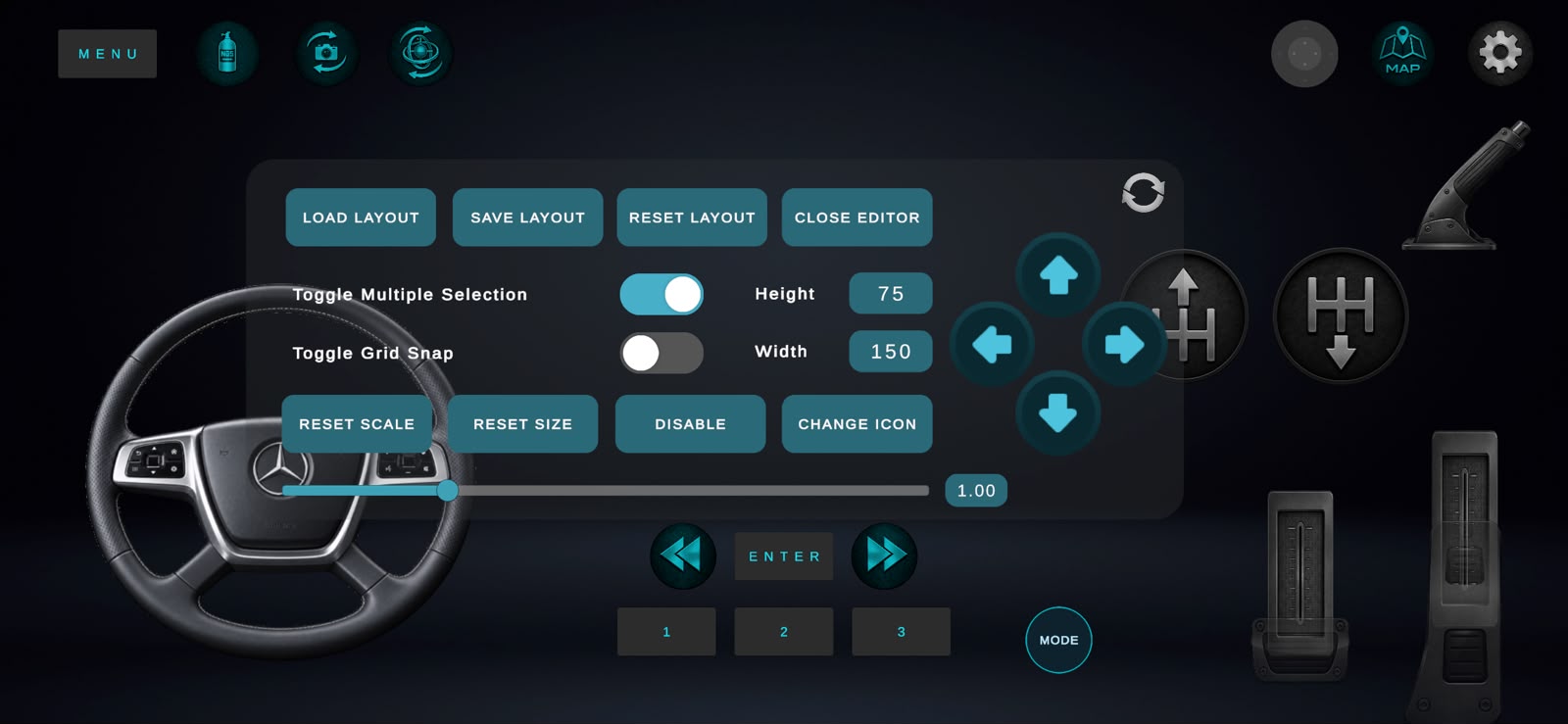
How to Change Button Icons
The gear icons you've seen in gameplay videos are just regular buttons with a custom image swapped in. Here's how to change the icon on any button, the wheel, or the pedals. These images are purely for our own satisfaction. They only behave the way you wire them on the receiver side and how the game considers that input.
- Open Customize Layout In the app, go to Settings → Customization → Customize Layout.
- Pick What to Change Select the button, the steering wheel, or a pedal you want to customize. Every button, the wheel, and the pedals can all be changed this way.
- Replace the Image Choose Replace/Change Image from the panel, then Add from Gallery, and pick the image you want to use from your phone's photo gallery.
Creating Your Own Custom Images
- You can create custom button images with any AI image generation tool, such as ChatGPT.
- Use the gear up/down icons below as reference images, download one and upload it to ChatGPT so it can match the same clean, transparent style for whatever new icon you ask it to create.
- Want your favorite car's steering wheel as your wheel image? Search the web for something like "[your car] steering wheel image", find a photo you like (the angle or orientation doesn't matter), then upload it to ChatGPT together with one of the reference icons below and ask it to generate a clean PNG in the same style, ready to import into the app.
Reference images (right-click / long-press to save):
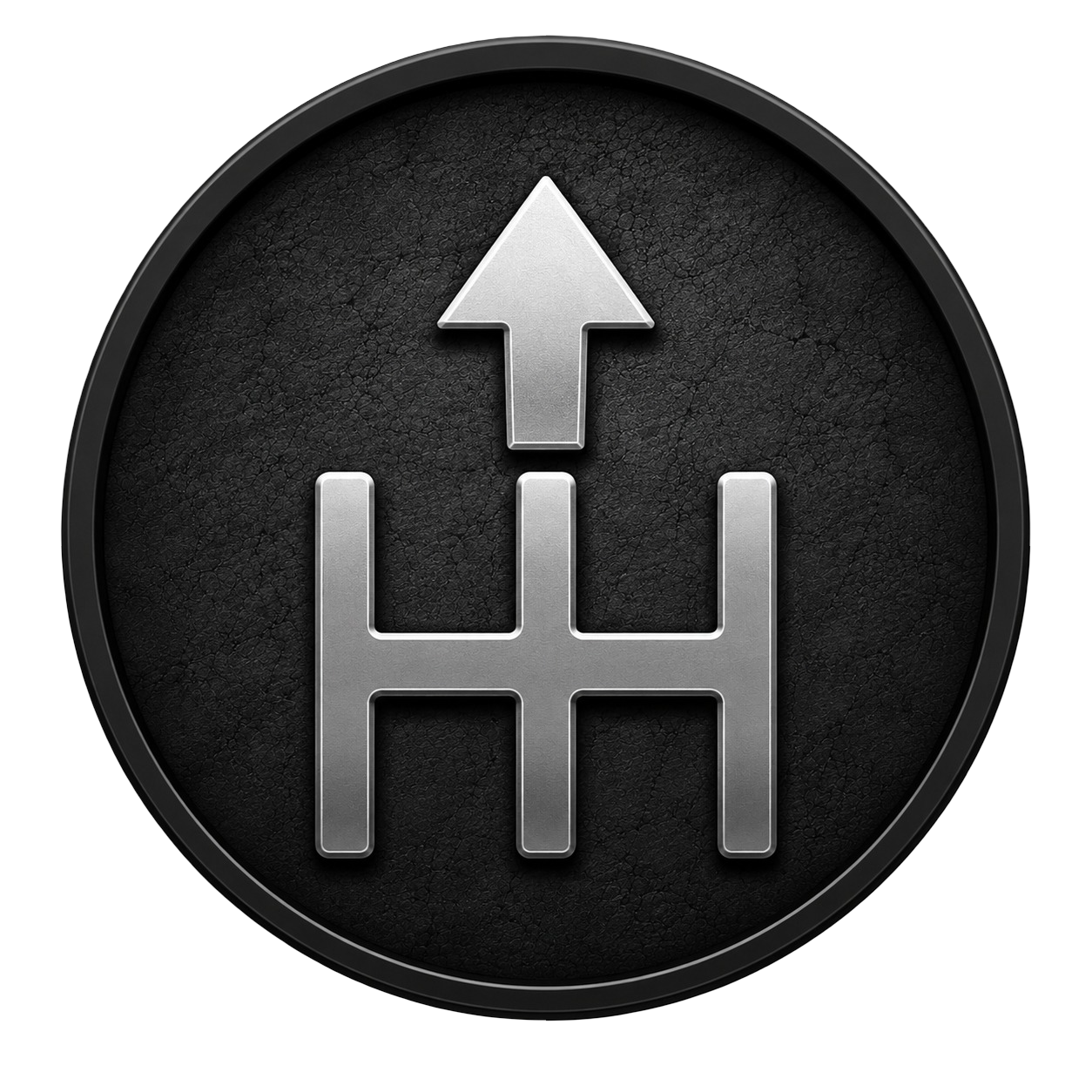 Download Gear Up
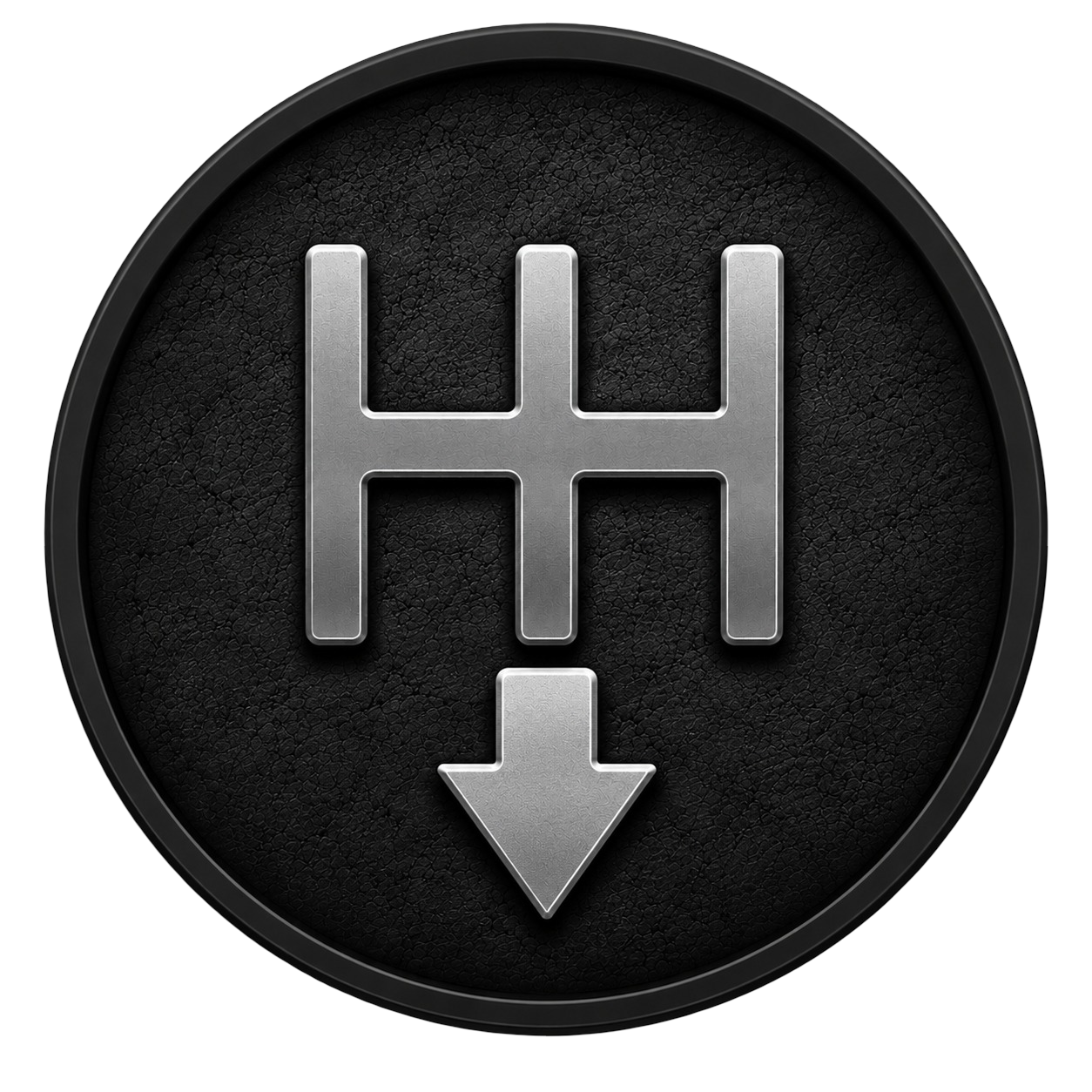 Download Gear Down
Game Specific
Per-game setup guides for controls, bindings and recommended modes.
Assetto Corsa — Full Setup Guide
Get Virtual Steering Controller running correctly in Assetto Corsa, from picking Wheel mode over Gamepad to calibrating steering, pedals, and gyro input.
- Connect Your Device For the lowest latency, connect over your phone's hotspot. If you prefer a wired connection, connect via USB and use USB tethering, it works the same as hotspot, just over cable.
- Switch to Wheel Mode In Assetto Corsa, go to Settings > Controls. You'll see a Gamepad option, don't use that. Select Wheel instead for correct 1:1 input. In the receiver, SIM Wheel mode can be on or off; both work fine.
-
Calibrate Steering
Select the Steering option and move your wheel, it's assigned
automatically.
- Set Center Offset to 0.
- Set Linearity to 50 for a 1:1 input mapping (adjust linearity first, then re-zero the center offset afterward).
- Linearity controls sensitivity near the center and at the ends of the input range, it's a personal preference, so check the full definition in the receiver guide to see what suits your driving style.
- Keep Maximum Output at 1, and set your preferred maximum steering angle.
- Set Up Pedals Assign throttle and brake the same way, select the axis, then press the pedal. Clutch support for an extra pedal is planned for a future update.
- Set Up the Shifter Assign Shift Up and Shift Down, these map to the paddle shifters on the wheel.
- Assign Extra Buttons Handbrake, lights, horn, and camera change can all be mapped by selecting the button and pressing the input you want to use.
-
Gyro Mode (Alternative to Wheel)
Prefer gyro input? Enable Gyro Tilt mode in
Settings.
- For Tilt mode, set Linearity to 0, this keeps input less sensitive near the center/rest position.
- Gyro Wheel mode simulates a full-rotation wheel (900° in this guide). If you switch to this mode, set steering linearity back to 50.
Note: If you haven't installed Virtual Steering Controller yet, refer to the General Setup video above!
Euro Truck Simulator 2 — Full Setup Guide
A complete walkthrough for wiring Virtual Steering into ETS2, from picking the right controller subtype to getting a true 1:1 steering ratio.
- App setup Connect and configure the receiver, make sure both your phone and the PC receiver are connected. If needed, remap any inputs directly on the receiver side (for example, making the brake trigger acceleration).
- ETS2 setup Open the ETS2 control settings and reset them to default so there are no leftover bindings causing conflicts.
- Change your primary control device to Keyboard + Controller X360 for Windows.
- Critical step Change the Controller Subtype from Gamepad/Joystick to Wheel. Leaving it on Gamepad mode will stop the steering from behaving correctly.
-
Map the steering axis by clicking it and applying input from your
device to wire it up.
- Set the Deadzone to 0.
- Set the Center Offset to 0 in both the game and the receiver app.
- Map the brake axis in the settings. Watch the input slider, it should move smoothly from zero to the ends. If you see a "red zone" near the edges, adjust it until that red zone is reduced or gone.
-
For 1:1 mapping
Configure rotation and linearity to match a gyro wheel:
- Set the maximum steering angle to 900° total (450° center-to-lock).
- Set Steering Linearity to 50.

Forza Horizon — Controller & Sim Wheel Setup
Configure Virtual Steering for Forza Horizon using either standard Gamepad mode or Sim Wheel mode for 1:1 mapping.
- Two Great Options Both Sim Wheel Mode and standard Xbox emulation work great here. To see how both affect Forza's physics, make sure to watch the Sim Wheel Mode tutorial above.
- Standard Mode For regular steering wheel mode, standard gamepad emulation is perfect for most players.
- DIY Setups (1:1 Mapping) If you are building a physical DIY setup and using the Gyro Wheel, you need to use Sim Wheel Mode to achieve a true 1:1 steering mapping.

Taxi Life — VJoy & Wheel Configuration
Gamepad emulation is not recommended for Taxi Life. Learn how to switch to vJoy for better control.
- Avoid Gamepad Emulation Using standard gamepad emulation won't be a good option for this simulator.
- Switch to Wheel Option You have an option to choose vJoy in the game control settings. First, set the control option to Wheel instead of Controller.
- Custom Config Turn on the Custom Config option in the menus. This will show an option to choose your steering device. Select vJoy from the list and bind the controls as per your need.

F1 Series — Gamepad vs Sim Wheel
F1 games support both Gamepad and Sim Wheel mode flawlessly. Choose the method that suits you best.
- Highly Compatible You have the option to configure this game using standard Gamepad inputs or vJoy (Sim Wheel Mode). Both methods work completely fine.
- Gamepad Setup Xbox inputs act the same as a normal controller. You can rebind the inputs in the game settings if you want, or you can wire them as per the game directly inside the PC receiver.
- Sim Wheel Mode Setup For vJoy (Sim Wheel Mode), you just have to bind the inputs directly in the game's control settings. It is simple and straightforward.

MudRunner — Sim Wheel Mode Fix
Fix auto-centering issues in MudRunner by switching your setup to Sim Wheel Mode.
- The Auto-Center Issue Auto-center may not work properly if you wire the app via standard Gamepad mode.
- Configure as Wheel You must configure it as a physical wheel. To do this, turn on Sim Wheel Mode in the PC receiver.
- Binding Controls Once Sim Wheel Mode is active, bind the steering and pedals in-game. This takes hardly 2 minutes.
- Extra Buttons For Sim Wheel Mode, make sure you bind the custom buttons starting from vJoy buttons 10-15, as all the buttons before that are already assigned to core functions. You can watch the Sim Wheel Mode tutorial above for a visual guide.

Roblox — Basic Setup
Getting the steering wheel to work seamlessly in compatible Roblox experiences.
- Plug and Play For some games in Roblox, it may work with basic settings without any additional rebindings using any of the default profiles.
- Custom Bindings You can configure and bind controls specifically in the controller options within Roblox.
- Need Help? If you don't know how to do it, search YouTube on "how to bind controls in Roblox for an Xbox Gamepad". The exact same steps apply here, just keep in mind your phone is acting like an Xbox controller!

Grand Theft Auto V — Quick Setup (Text Guide)
There is no special configuration needed for GTA 5. Just make sure you do NOT turn Sim Wheel Mode on!
- No Special Setup Needed GTA 5 will recognize your inputs straight away. It treats the virtual steering app exactly like a standard Xbox 360 controller.
- Keep Sim Wheel Mode OFF Do not turn on Sim Wheel Mode in the receiver when playing GTA 5. Sim Wheel mode is purely for vJoy emulation, which GTA 5 does not natively support for driving.
- Driving Bikes (Gyro Tilt) For driving bikes, we highly recommend using Gyro Tilt mode as it makes the experience much more fun and immersive! Make sure to set your Steering Linearity to 0 in the app, this gives you significantly more precise control near the center/zero position.
- Driving Cars (Gyro Wheel) If you are driving cars using the standard Gyro Wheel mode, setting your Steering Linearity to 100 is a great choice, especially if you have your maximum steering angle set to higher values (like more than 180 degrees).
- Learn More If you want to understand exactly what Sim Wheel Mode is and when it should be used, check out the Sim Wheel Mode Setup Guide above!
Other Games — Using Profiles for Any Game
How to play games even if they don't have a dedicated preset profile in the receiver.
- Use Any Profile If a specific profile is not provided in the receiver, it doesn't mean the game doesn't support the app. You can use any existing profile. For example, the name 'GTA 5' on a profile doesn't stop you from using it for Watch Dogs or ETS2.
- Duplicate & Edit You can easily duplicate an existing profile and edit the mappings in the receiver to match exactly what your new game expects.
- In-Game Bindings Alternatively, you can just load a generic profile and change the input bindings directly from the game's own control settings.
More tutorials are added regularly, check back soon.